
If you’d like to add another team member or update who has access to your Stay22 Hub account, follow these steps:
Step 1: Log In
Log into your Stay22 Hub.
Step 2: Go to Settings
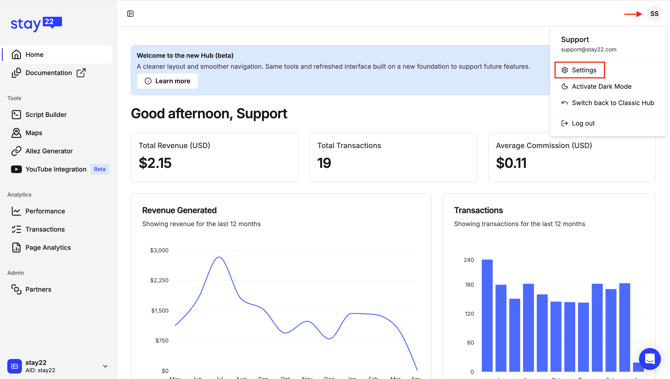
Click on your profile icon and go to Settings.
Step 3: Invite a New User
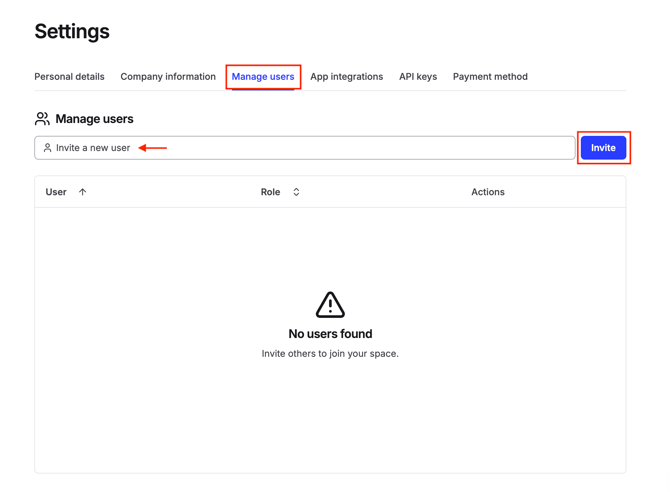
- Navigate to Manage Users
- Enter the new email address for the user you want to invite
- Click Invite
Step 4: Accept the Invitation
Ask the new user to check their inbox and accept the invite to create their profile. Once they have successfully created their profile, they will appear under Manage Users > Users.
Step 5: Assign Admin Access (Optional)
Once added, the current account owner can assign Admin access to the new user if needed. To do so:
Navigate to Manage Users > Users. Click the pencil icon next to the user whose access you want to update. Select Admin, then click Save Changes.
Need to change the Owner email?
Please contact our Support Team at support@stay22.com or through the Support Chat Bubble in your Hub account.