
From here, you’ll be able to create new maps, and view, edit and delete your existing maps.
Creating a map
Click ‘Create a New Map’
Here you can fill out the details of your map:
- Name: This will be visible to viewers of your map if they open it in a new tab, but also will show up in the Hub for you. It should be clear and relevant to either the location, venue, or event for which you’re creating the map.
- Address: The central point of the map.
- Start date and end date: Optional settings that will set the dates for the stay. Provide these if the map is being created for an event, otherwise we recommend leaving this field blank.
You can customize your map with your own branding, using a font and background color of your own choice. You’ll see a preview of your map in the window beside the inputs.
Adding Partner Hotels and Points of Interest
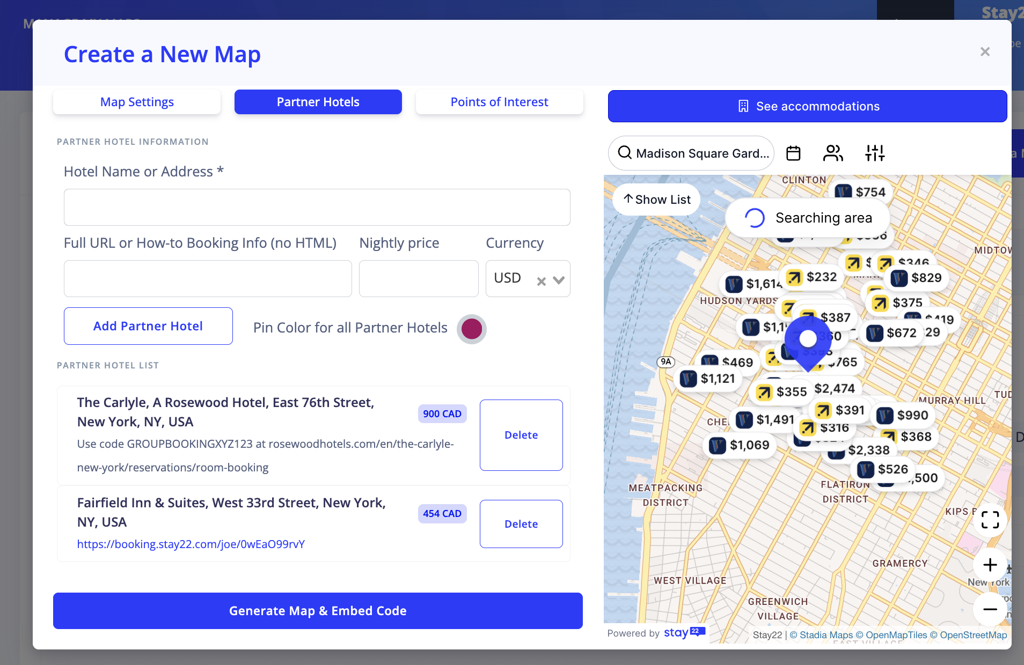
Partner Hotels
You might want to add a Partner Hotel if you have an existing group booking rate with a hotel, or if you simply want to recommend certain hotels.
If you do not have an existing relationship with a hotel, but want to recommend a certain hotel on the map, we recommend creating an Allez link to this hotel’s page on one of our suppliers using the Allez Generator. This will ensure that you still earn commission from a booking made using this link.
Points of Interest
You can add optional points of interest to your map. These might be especially useful if your map is for an event (e.g. adding Parking, Venue entrances, Registration points) or an itinerary (e.g. Beaches, Viewpoints, Restaurants).
Simply type in the location of the point of interest, add some information or a URL, and select an icon to represent it on the map, then click ‘Add Point of Interest’.
Saving and Sharing your Map
To add the map to your site, you can click on ‘Copy Embed Code’. This will provide you with the HTML code in an <iframe> that you can add to your site.
If you want to link to your map as a webpage, you can click on the name of the map, which will open it in a new tab. You can copy and share this URL.